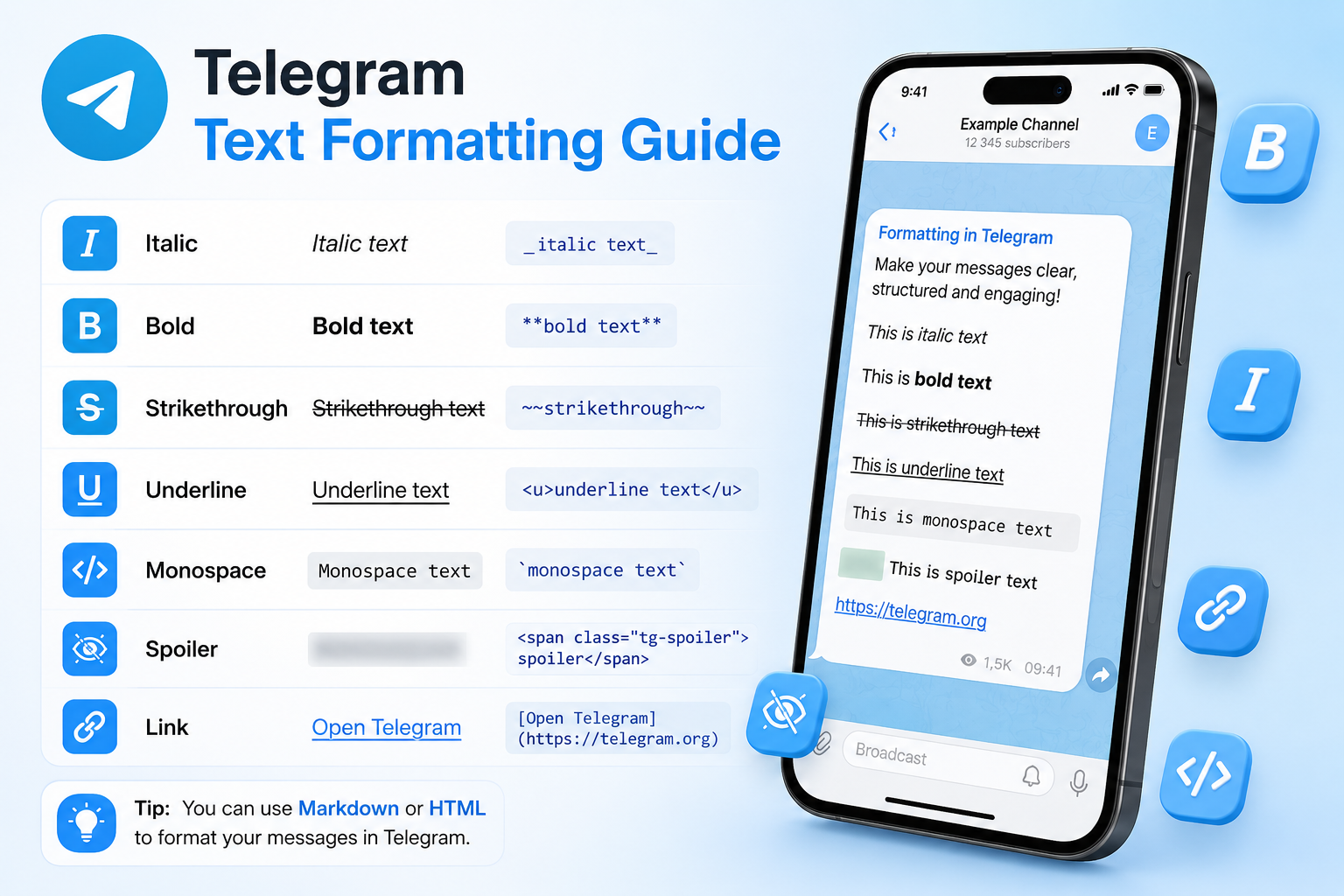
Telegram has evolved far beyond a simple messaging app. Today, it’s a powerful platform for businesses, bloggers, online communities, educational projects, and news channels. Well-structured content in Telegram is not only about what you write, but also how your message looks to readers.
Text formatting in Telegram helps make posts more readable, visually appealing, and easier to understand. In this guide, you’ll learn all the main ways to format text in Telegram, including bold text, italics, spoilers, links, Markdown, HTML tags, and keyboard shortcuts.
Types of Text Formatting in Telegram
Telegram supports several built-in text formatting styles that help organize and highlight information inside messages.
The main formatting options include:
- Italic text – commonly used for quotes, thoughts, or emphasis
- Bold text – ideal for highlighting important information
- Strikethrough text – useful for edits, corrections, or humorous effects
- Underlined text – adds extra emphasis (available through HTML formatting)
- Monospace text – often used for code snippets, commands, or technical terms
- Spoiler formatting – hides sensitive or intriguing information
- Hyperlinks – allow users to add clickable text links
These formatting options are available both in the mobile app and desktop version of Telegram, although the methods may slightly differ depending on the device.
Ways to Format Text in Telegram
Using the Built-In Telegram Editor
The easiest way to format text in Telegram is by using the built-in editor.
In the mobile app:
- Type your message
- Highlight the text you want to format
- Tap the formatting menu
- Choose the desired style:
- Bold
- Italic
- Monospace
- Strikethrough
- Spoiler
This method is beginner-friendly and requires no knowledge of Markdown or HTML.
Using Markdown or HTML Formatting
Telegram also supports Markdown and HTML formatting, especially useful for bots, automated posting, and advanced content publishing.
Markdown Formatting
Markdown is a lightweight formatting syntax used for quick text styling. It supports the most common formatting options but offers limited flexibility.
HTML Formatting
HTML formatting provides more control and additional styling possibilities, particularly when working with Telegram bots or APIs.
Important: when using Markdown or HTML, incorrect syntax or broken tags may prevent the formatting from displaying correctly.
Telegram Formatting Shortcuts for Desktop
If you use Telegram Desktop, keyboard shortcuts can significantly speed up content formatting.
Windows/Linux Shortcuts
- Ctrl + B – bold text
- Ctrl + I – italic text
- Ctrl + Shift + M – monospace text
- Ctrl + Shift + X – strikethrough text
- Ctrl + Shift + S – spoiler formatting
macOS Shortcuts
- Cmd + B – bold text
- Cmd + I – italic text
- Cmd + Shift + M – monospace text
- Cmd + Shift + X – strikethrough text
- Cmd + Shift + S – spoiler formatting
These shortcuts work directly inside the message input field and are especially useful for content creators and channel admins.
How to Italicize Text in Telegram
Italic text is often used for emphasis, quotes, or stylistic formatting.
Through the Telegram Interface
- Highlight the text
- Select “Italic” from the formatting menu
Using Markdown
Wrap the text with underscores: _text_
Using HTML
Use the <i> tag: <i>text</i>
How to Make Text Bold in Telegram
Bold formatting helps attract attention to important parts of a message.
Through the Telegram Interface
- Highlight the text
- Choose “Bold”
Using Markdown
Wrap the text with double asterisks: **text**
Using HTML
Use the <b> tag: <b>text</b>
How to Use Strikethrough Text in Telegram
Strikethrough text is commonly used for edits, jokes, or crossed-out ideas.
Through the Telegram Interface
- Highlight the text
- Select “Strikethrough”
Using Markdown
Wrap the text with tildes: ~~text~~
Note: some Telegram bots may not fully support strikethrough formatting.
How to Underline Text in Telegram
Telegram does not support underline formatting through Markdown, but it works with HTML tags.
Using HTML
Use the <u> tag: <u>text</u>
How to Use Monospace Text in Telegram
Monospace formatting is ideal for commands, code snippets, or technical content.
Through the Telegram Interface
- Highlight the text
- Choose “Monospace”
Using Markdown
Wrap the text with backticks: `text`
Using HTML
Use the <code> tag: <code>text</code>
How to Hide Text in Telegram Using Spoilers
Telegram’s spoiler feature allows users to hide text until it’s clicked or tapped.
This is useful for:
- spoilers
- quiz answers
- giveaways
- sensitive information
- interactive content
Through the Telegram Interface
- Highlight the text
- Select “Spoiler”
Using HTML
<span class=”tg-spoiler”>text</span>
How to Add Links in Telegram Messages
Hyperlinks make Telegram posts more interactive and professional.
Through the Telegram Interface
- Highlight the text
- Tap the link icon
- Insert the URL
Using Markdown
[title](https://example.com)
Using HTML
<a href=”https://example.com”>title</a>
Why Text Formatting Matters in Telegram
Well-formatted Telegram messages improve:
- readability
- user engagement
- content structure
- click-through rates
- audience retention
For businesses, bloggers, and Telegram channel owners, proper formatting helps content look more professional and easier to consume.
Even though Telegram itself has limited SEO impact because it’s not fully indexed by search engines, high-quality structured content can still increase reposts, shares, and user interaction.
Text formatting in Telegram is a simple yet powerful tool for improving communication and content presentation. Whether you use bold text, italics, spoilers, monospace formatting, or hyperlinks, these features help make messages clearer, more engaging, and more professional.
Thanks to Telegram’s built-in formatting tools, Markdown syntax, HTML tags, and desktop shortcuts, anyone can create visually appealing content without advanced technical skills.
FAQ
Can you combine multiple formatting styles in Telegram?
Example:
<b><i>text</i></b>